

Write prompts that produce useful data
Ask like a buyer, not like a marketer. Buyers rarely type your tagline. They describe a problem or a situation:
More tips:
- Mix branded and unbranded prompts. Prompts that name your brand show how AI platforms describe you. Prompts that do not name any brand show whether you are recommended at all, and they are where most growth comes from.
- Cover the whole journey. Include questions buyers ask while learning, comparing and deciding. Comparison and recommendation prompts produce the most meaningful positions.
- Do not chase exact wording. Small rephrasings of the same question tend to produce similar answers. Spend your allowance on different questions, not variations of one.
- Keep prompts short. A prompt can be up to 500 characters, but real buyer questions are usually one or two sentences.
Add a prompt
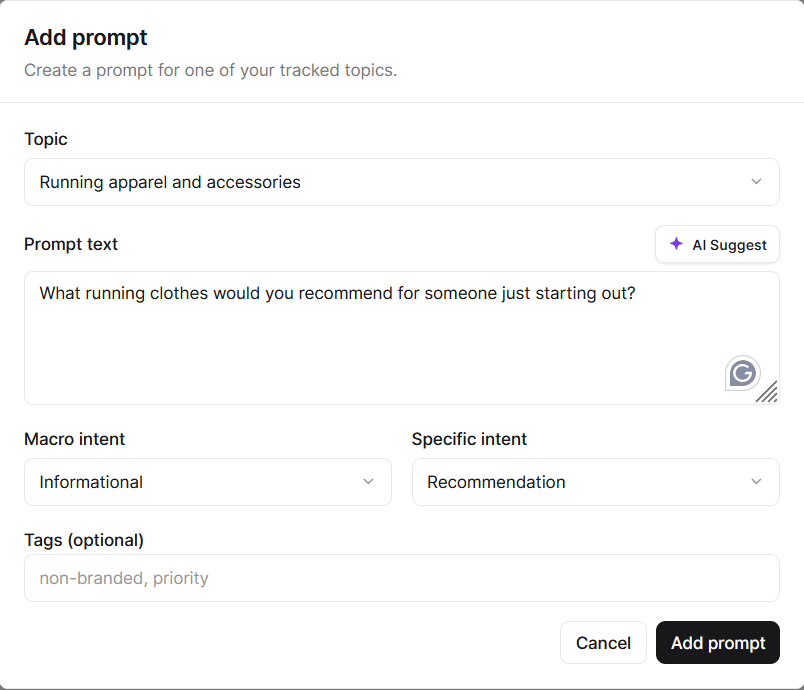
- Go to Prompts and click Add Prompt.
- Choose the Topic it belongs to.
- Write the Prompt text, or click AI Suggest for ideas based on the topic and your brand profile.
- Pick a Macro intent and a Specific intent (see below).
- Optionally add Tags, for example
non-brandedorpriority. - Save. The prompt is included from the next crawl.
Intent
Every prompt carries two intent labels. They help you filter the prompts list and compare how you do on different kinds of questions. Macro intent is the broad goal behind the question:
Specific intent narrows it down: Comparison, Alternative, Review, Recommendation, Pricing, Purchase, HowTo, Troubleshooting, Guide or Local.
Manage prompts
The Prompts page lists every prompt in the project, with tabs for All, Active and Archived. Search by text or filter by topic and intent.
To act on many prompts at once, tick their checkboxes and choose a bulk action. Select all applies to every prompt that matches your current filters, not just the visible page.
Editing a prompt’s text changes the question from the next crawl onward. If the meaning changes substantially, consider archiving the old prompt and adding a new one, so the history of each question stays clean.